


Using Built-in Accessibility for OT Practice
The built-in accessibility toolkit is a series of flowcharts to help you determine technology solutions for clients using technology they already have available. One technology solution may be all the client can manage at a time, so this cycle may need to be repeated over multiple sessions.
Please see our Quick Start Guides for more detail on built-in accessibility features:
Assistive technology selection and training is a cyclical process:
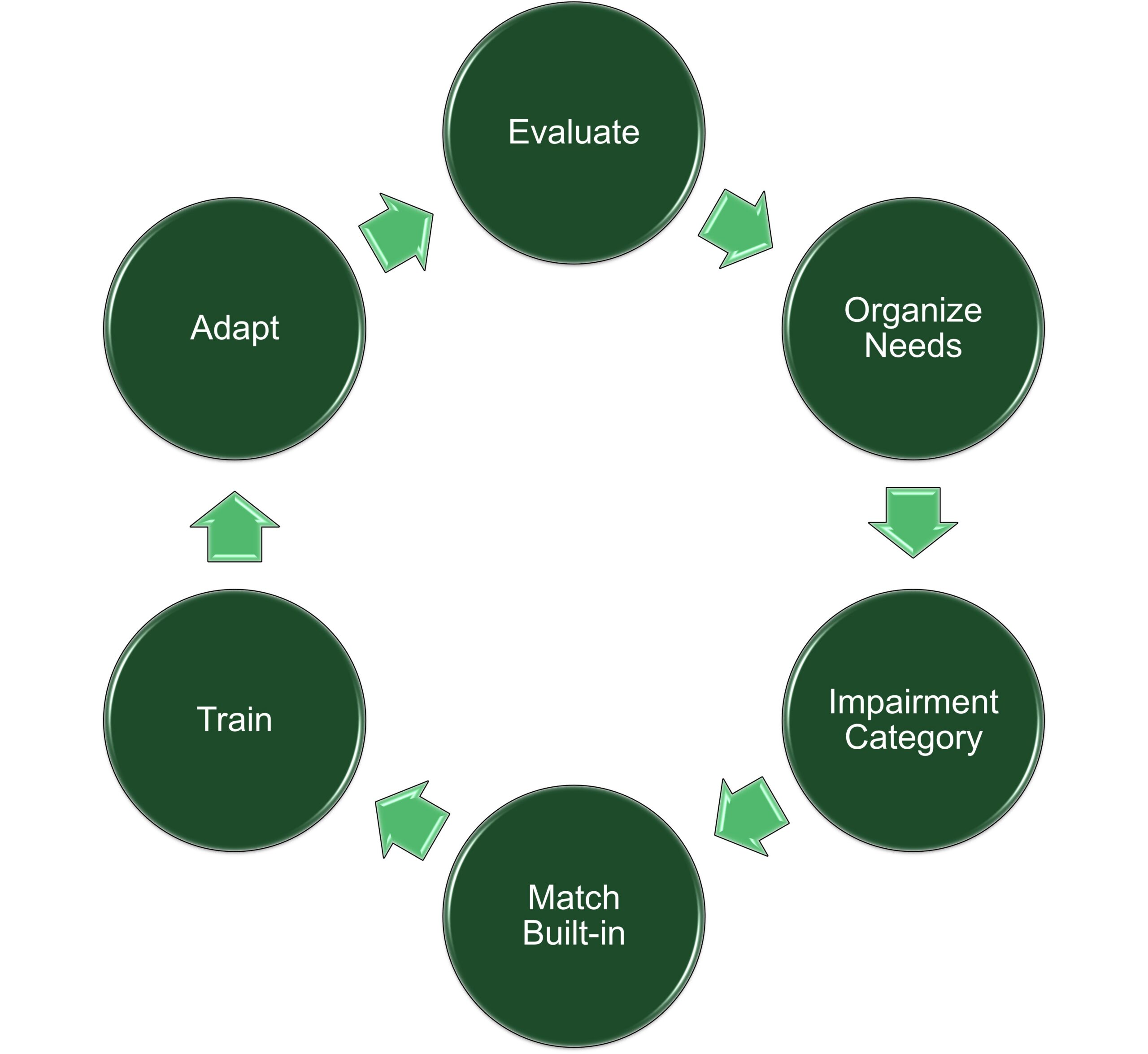
Evaluate: Client abilities, occupations, and context (guided by OT clinical reasoning and the HAAT model).
Organize needs: Are they cognitive, sensory, or interaction-based? Use the applicable flowchart found below.
Reference impairment: Choose one data point to narrow your focus in the flowchart.
Match: Operating system features to impairment using the tool.
Train: Client and caregiver. Use our Built-in Accessibility Quick Start Guide for assistance with training.
Adapt: Reassess and adapt as needs evolve.
How To Utilize the Flowchart Process
Practitioners begin by identifying the primary functional area impacting participation, then use the flowchart for the corresponding primary functional need and the user’s device type (Apple vs. Android). Follow the corresponding branch to locate relevant impairments and then built-in accessibility supports.
The trees can be used collaboratively with clients and caregivers to guide discussion, support shared decision-making, and select appropriate features in real time. Practitioners are encouraged to individualize recommendations based on goals, routines, and environments, and to revisit the trees as needs and contexts change.
Toolkit Flowcharts by Device Type
Cognition Flowchart for iOS
iOS Cognition Flowchart
iOS Cognition Downloadable PDF Version
Text Description
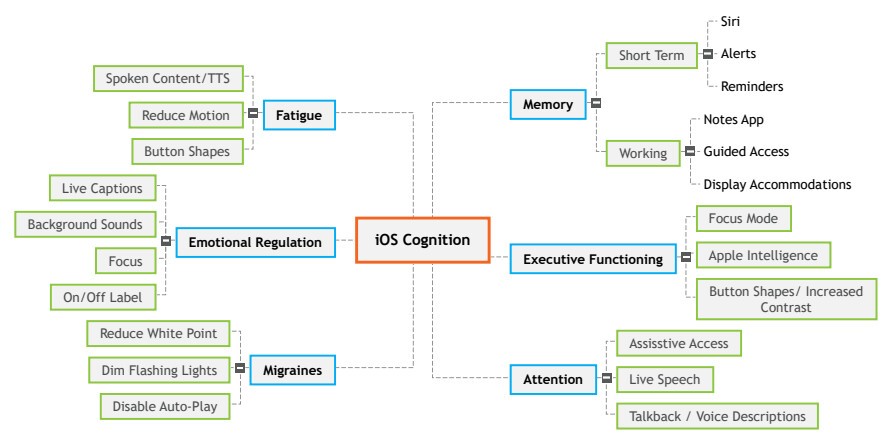
This flowchart identifies Cognition as the primary functional area.
The second level describes cognitive-related challenges a person may experience, including fatigue, emotional regulation differences, migraines, memory changes, executive functioning demands, and attention difficulties. In some cases, these challenges are further specified, such as differences in short-term and working memory.
The final level presents selected built-in iOS accessibility features designed to support these functional needs. While some features may be applicable across multiple areas, they are listed once for clarity, and a practice example is provided below.
Practice Example
Consider a client who is recovering from a stroke, lives independently, and understands their medication routine, but experiences short-term memory changes that affect consistent medication management.
Primary Functional Area: Cognition
Primary Impairment: Short-term memory challenges
Built-in iOS Support: Reminders
Based on this Built-in OT decision tool, a recommended intervention is to collaboratively set up and customize the built-in Reminders feature within the iOS operating system to support timely and independent medication management.
Structured List Version
Cognition
- Fatigue
- Spoken Content / Text-to-Speech (TTS)
- Reduce Motion
- Button Shapes
- Emotional Regulation
- Live Captions
- Background Sounds
- Focus
- On/Off Label
- Migraine
- Reduce white point
- Dim Flashing Lights
- Disable Auto-Play
- Memory
- Short Term
- Siri
- Alerts
- Reminders
- Working
- Notes App
- Guided Access
- Display Accommodations
- Short Term
- Executive Functioning
- Focus mode
- Apple Intelligence
- Button Shapes / Increased Contrast
- Attention
- Assistive Access
- Live Speech
- Talkback / Voice Descriptions
Cognition Flowchart for Android
Android Cognition Flowchart
Android Cognition Downloadable PDF Version

Text Description
This flowchart identifies Cognition as the primary functional area.
The second level describes cognitive-related challenges a person may experience, including fatigue, emotional regulation differences, migraines, memory changes, executive functioning demands, and attention difficulties. In some cases, these challenges are further specified, such as differences in short-term and working memory.
The final level presents selected built-in Android accessibility features designed to support these functional needs. While some features may be applicable across multiple areas, they are listed once for clarity, and a practice example is provided below.
Practice Example
Consider a client who is recovering from a stroke, lives independently, and understands their medication routine, but experiences short-term memory changes that affect consistent medication management.
Primary Functional Area: Cognition
Primary Impairment: Short-term memory challenges
Built-in Android Support: Google Calendar
While the interface differs from iOS, the functional and occupational goal remains the same. Based on the Built-in decision tool, a recommended intervention is to collaboratively set up and customize Google Calendar within the Android operating system to support timely and independent medication management.
Structured List Version
Cognition
- Fatigue
- Dictation
- Alarms
- Emotional Regulation
- Custom Captions
- Automatic Click
- Action Blocks
- Migraines
- Extra Dim
- Color Inversion / Grayscale
- Disable Auto-Play (Per App)
- Memory
- Short Term
- Google Calendar
- Alarm
- Flash notifications
- Vibration & Haptics
- Working
- Notes/Memo
- Select to speak
- Short Term
- Executive Functioning
- Reading Mode
- Text-to-speech
- Android Accessibility Suite
- Accessibility menu
- Attention
- Reading Mode
- Calendar Reminders
- Remove Animations
Sensory Flowchart for iOS
iOS Sensory Flowchart
iOS Sensory Downloadable PDF Version
Text Description
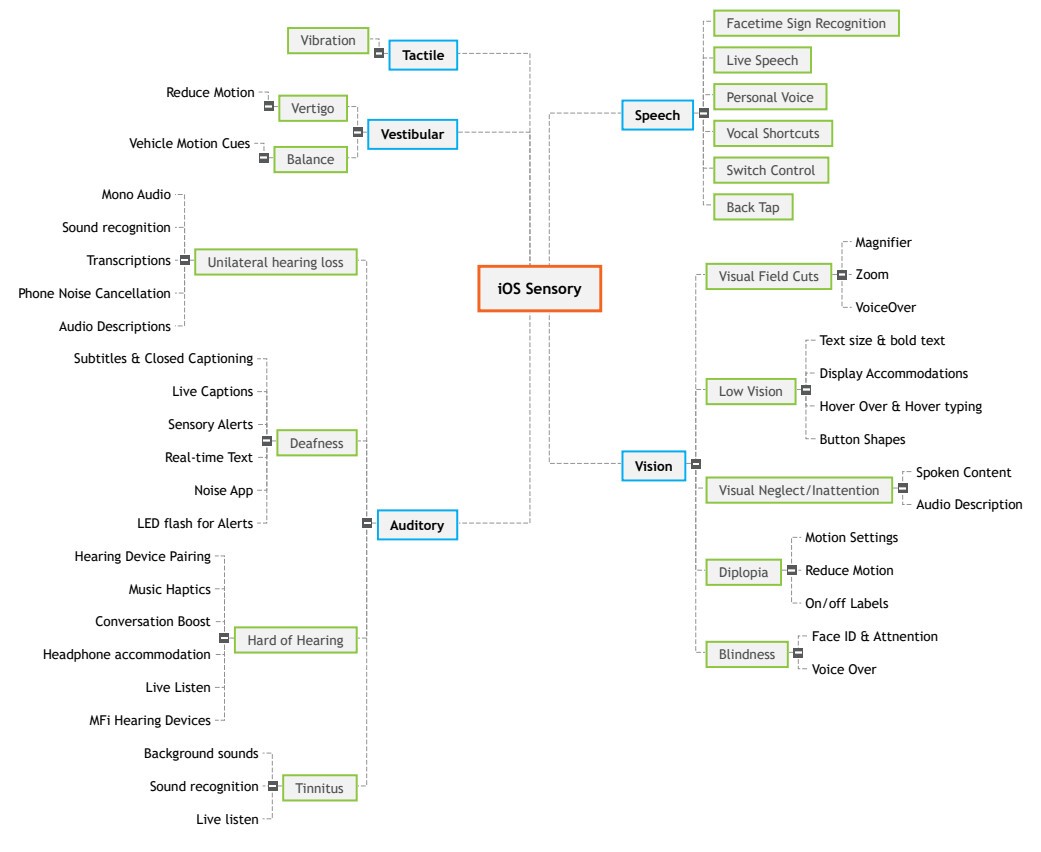
This flowchart identifies Sensory as the primary functional area.
The second level describes sensory-related challenges a person may experience, including differences in tactile processing, vestibular processing, hearing, speech, and vision. In some cases, these challenges are further specified, such as low vision or being hard of hearing.
The final level presents selected built-in iOS accessibility features designed to support these functional needs. While some features may be applicable across multiple areas, representative examples are included to promote clarity and ease of use.
Practice Example
Consider a client who experiences unilateral hearing loss and has difficulty accessing audio content through their phone.
Primary functional area: Sensory
Primary impairment: Auditory differences related to unilateral hearing loss
Built-in iOS support: Mono Audio
Based on the decision tool, a recommended intervention is to collaboratively enable and customize the Mono Audio setting within the iOS operating system to support clearer and more accessible audio input and promote independent device use.
Structured List Version
Sensory
- Vestibular
- Vertigo
- Reduce Motion
- Balance
- Vehicle Motion Cues
- Vertigo
- Tactile
- Vibration
- Auditory
- Unilateral Hearing Loss
- Mono Audio
- Sound recognition
- Transcriptions
- Phone Noice Cancellation
- Audio Descriptions
- Deafness
- Subtitles & Closed Captioning
- Live Captions
- Sensory Alerts
- Real-time Text
- Noise App
- LED flash for Alerts
- Hard of Hearing
- Hearing Device Pairing
- Music Haptics
- Conversation Boost
- Headphone accommodation
- Live Listen
- MFi Hearing Devices
- Tinnitus
- Background sounds
- Sound recognition
- Live listen
- Unilateral Hearing Loss
- Speech
- Facetime Sign Recognition
- Live Speech
- Personal Voice
- Vocal Shortcuts
- Switch Control
- Back Tap
- Vision
- Visual Field Cuts
- Magnifier
- Zoom
- VoiceOver
- Low Vision
- Text size & bold text
- Display Accommodations
- Hover Over & Hover typing
- Button Shapes
- Visual Neglect/Inattention
- Spoken Content
- Audio Description
- Diplopia
- Motion Settings
- Reduce Motion
- On/off Labels
- Blindness
- Face ID & Attention
- VoiceOver
- Visual Field Cuts
Sensory Flowchart for Android
Android Sensory Flowchart
Android Sensory Downloadable PDF Version

Text Description
This flowchart identifies Sensory as the primary functional area.
The second level describes sensory-related challenges a person may experience, including differences in tactile processing, vestibular processing, hearing, speech, and vision. In some cases, these challenges are further specified, such as low vision or being hard of hearing.
The final level presents selected built-in Android accessibility features designed to support these functional needs. While some features may be applicable across multiple areas, representative examples are included to promote clarity and ease of use.
Practice Example
Consider a client who experiences unilateral hearing loss and has difficulty accessing audio content through their phone.
Primary Functional Area: Sensory
Primary Impairment: Auditory differences related to unilateral hearing loss
Built-in Android Support: Mono Audio
Based on the Built-in decision tool, a recommended intervention is to collaboratively enable and customize the Mono Audio setting within the Android operating system to support clearer and more accessible audio input and promote independent device use.
Structured List Version
Sensory
- Tactile
- Vibration
- Vestibular
- Vertigo
- Remove Animations
- Vertigo
- Hearing
- Unilateral Hearing Loss
- Real-Time text
- Left/Right sound balance
- Mono Audio
- Sound Recognition
- Adapt/Mute Sound
- Deafness
- Live Captions
- Custom Subtitles, Caption Styles
- Vibration and Haptics
- Flash Notification
- Hard of Hearing
- Headphone Accommodations
- Hearing Device Pairing
- Expressive Captions
- Live Transcription & Notification
- Sound Amplifier
- Tinnitus
- Ambient Sounds
- Background Sounds
- Volume Balancing
- Speech
- Dictation
- Unilateral Hearing Loss
- Vision
- Visual Field Cuts
- Magnifier
- Lookout
- Low Vision
- Reading Mode
- Display Size & Text controls
- Dark Theme / Color Inversion
- Contrast & Color Control
- Visual Neglect/Inattention
- Dim Screen
- Accessibility Menu
- Select to Speak
- Diplopia
- Screen Zoom
- Blindness
- Talkback
- Audio Descriptions
- Voice Assistant
- Visual Field Cuts
Interaction Flowchart for iOS
iOS Interaction Flowchart
iOS Interaction Downloadable PDF Version
Text Description
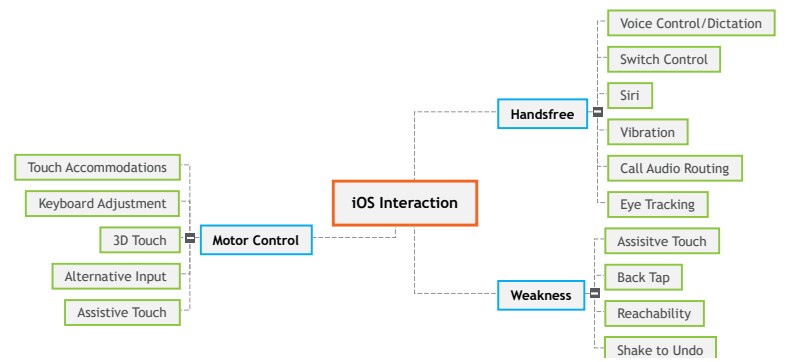
This flowchart identifies Interaction as the primary functional area.
The second level describes interaction-related challenges a person may experience, including differences in motor control, need for hands-free access, and reduced strength.
The final level presents selected built-in iOS accessibility features designed to support these functional needs. While some features may be applicable across multiple areas, representative examples are included to promote clarity and ease of use.
Practice Example
Consider a client who experiences reduced motor control and has difficulty completing quick or precise touch gestures. Providing additional time for touch input supports accurate interaction with the device without changing task demands.
Primary Functional Area: Interaction
Primary Impairment: Reduced motor control
Built-in iOS Support: Touch accommodations
Based on the Built-in decision tool, a recommended intervention is to collaboratively adjust touch accommodation settings within the iOS operating system to allow more time for accurate touch input and support independent device use.
Structured List Version
Interaction
- Motor Control
- Touch Accommodations
- Keyboard Adjustment
- 3D Touch
- Alternative Input
- Assistive Touch
- Handsfree
- Voice Control/Dictation
- Switch Control
- Siri
- Vibration
- Call Audio Routing
- Eye Tracking
- Weakness
- Assistive Touch
- Back Tap
- Reachability
- Shake to Undo
Interaction Flowchart for Android
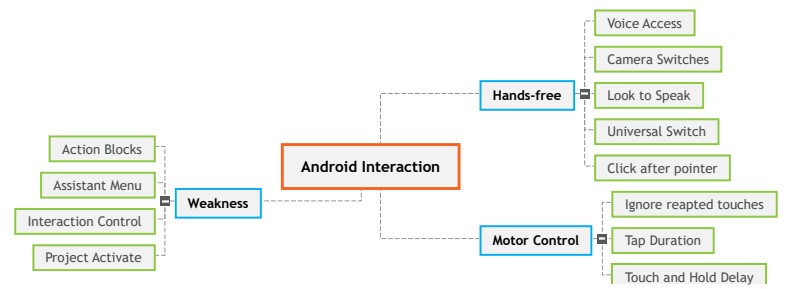
Android Interaction Flowchart
Android Interaction Downloadable PDF Version
Text Description
This flowchart identifies Interaction as the primary functional area.
The second level describes interaction-related challenges a person may experience, including differences in motor control, need for hands-free access, and reduced strength.
The final level presents selected built-in Android accessibility features designed to support these functional needs. While some features may be applicable across multiple areas, representative examples are included to promote clarity and ease of use.
Practice Example
Consider a client who experiences reduced motor control and has difficulty completing quick or precise touch gestures. Providing additional time for touch input supports accurate interaction with the device without changing task demands.
Primary Functional Area: Interaction
Primary Impairment: Reduced motor control
Built-in Android Support: Tap duration
Based on the Built-in decision tool, a recommended intervention is to collaboratively adjust the tap duration setting within the Android operating system to allow more time for accurate touch input and support independent device use.
Structured List Version
Interaction
- Weakness
- Action Blocks
- Assistant Menu
- Interaction Control
- Project Activate
- Handsfree
- Voice Access
- Camera Switches
- Look to Speak
- Universal Switch
- Click after pointer
- Motor Control
- Ignore repeated touches
- Tap Duration
- Touch and Hold Delay