


Overview
Anthology Ally is a tool available to all CSU students when using files on Canvas. Ally creates accessible, alternative file formats for all students to use when downloading files for coursework.
These alternative formats include OCRed PDF, HTML, EPub, Electronic braille, Audio, Beeline Reader, and Immersive Reader. We will go over each of these alternative formats in this guide as they are presented in Ally.
Using Anthology Ally Alternative Formats
Getting Started
- Log in to Canvas and select a course that has files/documents that you want to download for class.
- You can download the alternative formats anywhere Ally’s Download Alternative Formats button is available. The button appears as a letter “A” or a Down Arrow icon beside the name of the file.

- Once you click on the download icon, it will list all of the alternative formats that are available for you to download:
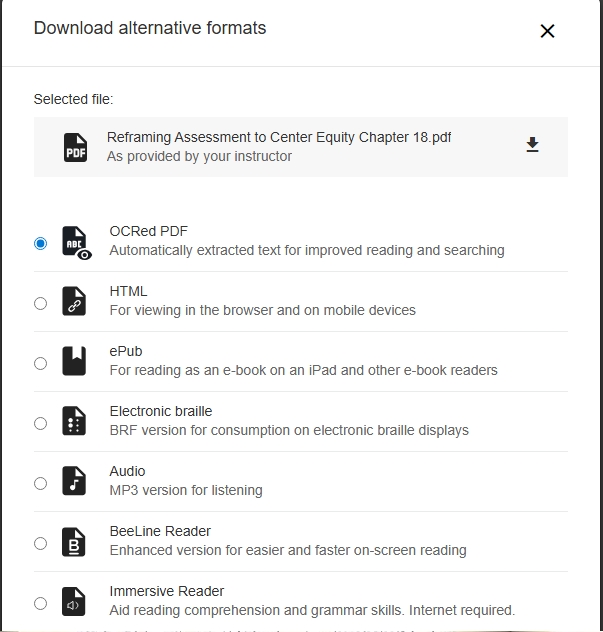
OCRed PDF
- OCR stands for Optical Character Recognition. OCRed PDF alternatives are created when the original content is an image of text. OCR technology analyzes the file content and converts it into searchable text that can be recognized by other technology. With OCRed PDF, you can:
- Copy, paste, and search text.
- Use text-to-speech and adjust speech speed.
- Highlight content, take notes, and bookmark important pages
For accessible PDF Accommodations:
- OCRed PDF usually meets the needs of students with an accommodation for “universal design-level accessibility”.
- If a PDF already has searchable text, the OCRed PDF option will not be available. Just download the original PDF “as provided by your instructor”.
- If an OCRed PDF doesn’t work well with your assistive technology, it could be because the original is a poor-quality scan. In this case, you can request a better copy from your instructor. If you need support with this, contact your ATRC service provider or the ATRC main office.
HTML
- In HTML, tags and elements such as blockquotes, paragraphs, and headings are added to a file to provide more structure. Using HTML is ideal when content has complex layouts. With HTML, you can:
- Adjust font size and background color
- Highlight content, take notes, and bookmark important pages
- Copy, paste, and search text
- Use text-to-speech and adjust the speed of the speech
- HTML is also a more accessible format than PDF for many assistive technology users.
ePub
- ePub is a digital publishing file type that can be viewed on your mobile device. EPub files are reflowable which means that the content displayed automatically adapts to the device it is used on. With ePub, you can:
- Read on a mobile device
- Adjust font size and background color
- Highlight content, take notes, and bookmark important pages
- Copy, paste, and search text
- Use text-to-speech and adjust the speed of the speech.
- ePubs need compatible software, but many assistive technology programs are compatible. They can be more accessible than PDFs if formatted well, especially with software such as JAWS, nvda or VoiceOver.
Electronic Braille
- The electronic braille alternative feature creates a BRF file that can be read on a refreshable Braille display (RBD), other Braille reading devices, or within Braille software like Duxbury. With electronic braille, users with visual impairments can know the spelling, punctuation, and format of text on a page. Electronic braille could be a good option if you:
- Have a visual impairment
- Are familiar with Braille
Audio
- The audio alternative format reads out loud the original content. This could also include audio descriptions of images if they are provided in the original text. The audio alternative format is saved on your device as an MP3 file, which is a high-quality sound file that can then be played on your device.
BeeLine Reader
- BeeLine Reader makes reading on screen easier and faster. Instead of using plain black text, BeeLine Reader displays text using a subtle color gradient that helps pull your eye through your readings. BeeLine Reader’s color gradient technique not only increases reading speed but also enhances focus.
- Please note that this is an online tool, so no file will be downloaded to your device. Instead, it will open in a new tab.
- When BeeLine opens in a new tab, you can select five different color palettes: bright, dark, blues, grays, and night.

- This is what the text looks like with the bright option selected:

Immersive Reader
Immersive Reader is an online immersive format that enhances the readability of file contents. It removes distractions by displaying only the text in a paragraph layout.
The features of Immersive Reader include:
- Convert text to speech
- Change font size and text spacing
- Change the contrast between the text and the background color
- Learn spelling and grammar by splitting words into syllables
- Highlight verbs, nouns, adjectives, and sub-clauses
- View a picture dictionary
- Increase reading speed with line focus
How to use Immersive Reader:
- From the download alternative formats window, select the Immersive Reader button and select Download. Please note that this is an online tool, so no file will be downloaded to your device. Instead, it will open in a new tab.
- From here, Immersive Reader opens and displays the content of the selected file. Keep in mind that it will not display images and tables.
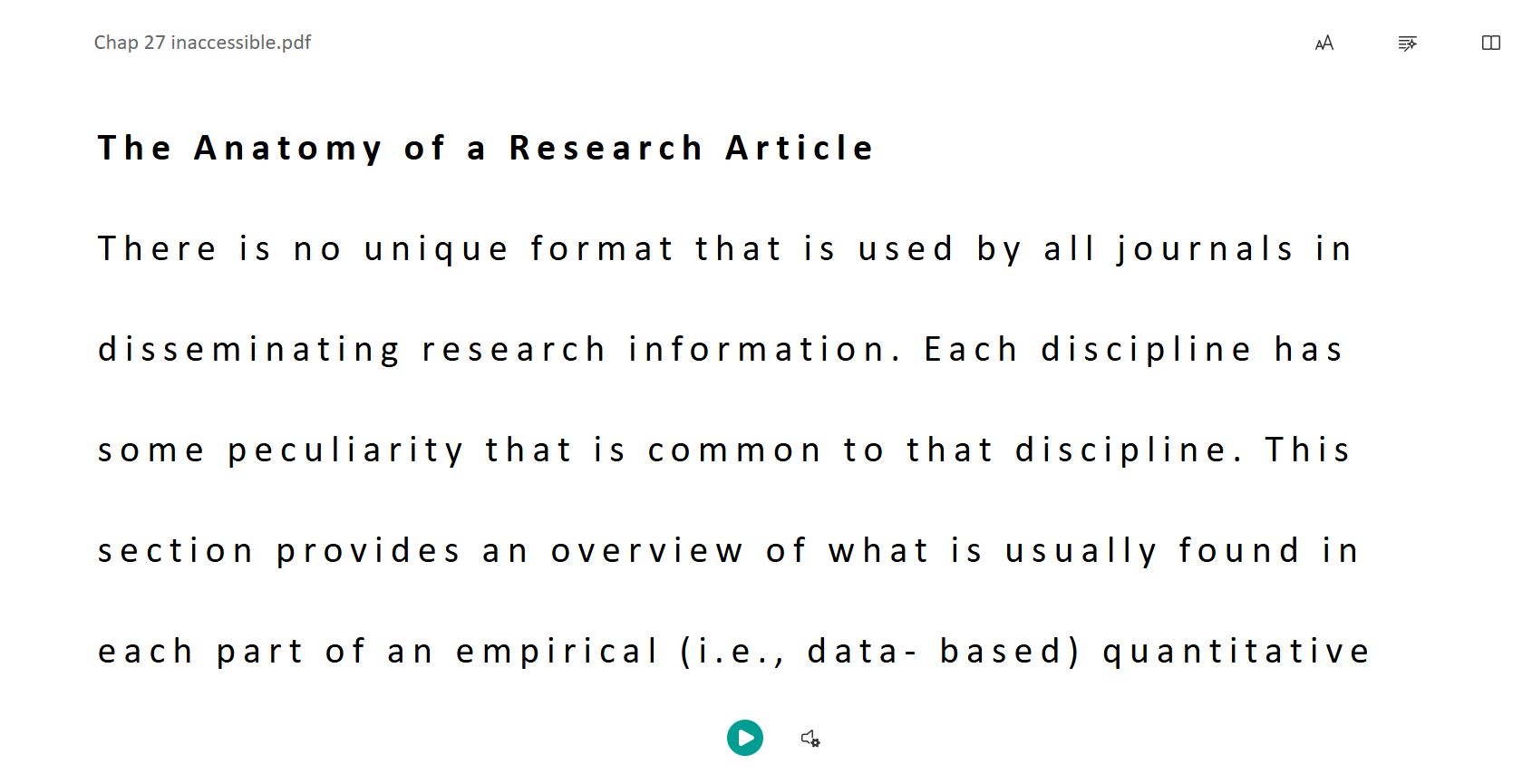
- To listen to the text, use the audio controls at the bottom, below the text. There is a play/pause button and a voice settings button. In voice settings, you can change the voice between male and female and change the voice speed.

- There are three additional buttons on the top right corner of the page where you can set other preferences. The buttons are for Text Preferences, Grammar Options and Reading Preferences.
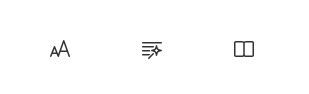
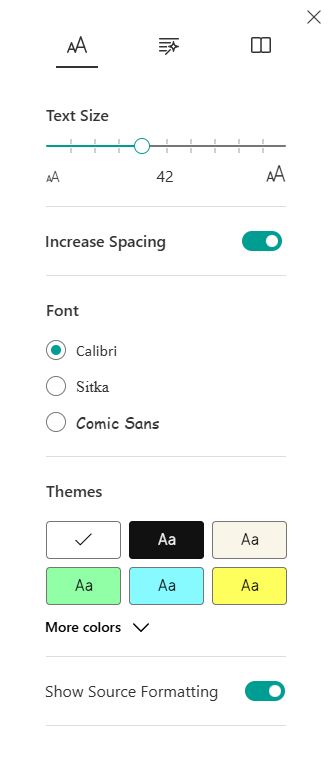
- In Text Preferences, you can change text size, font, background color (theme) and spacing.
- In Grammar Options you can choose to divide words into syllables and highlight parts of speech (nouns, verbs, adverbs, and adjectives).
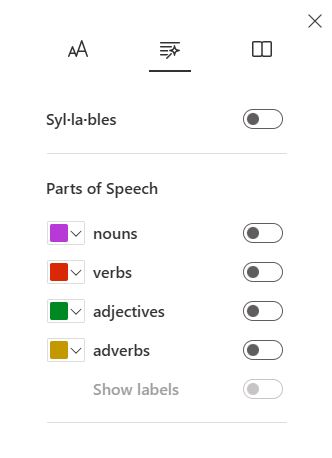
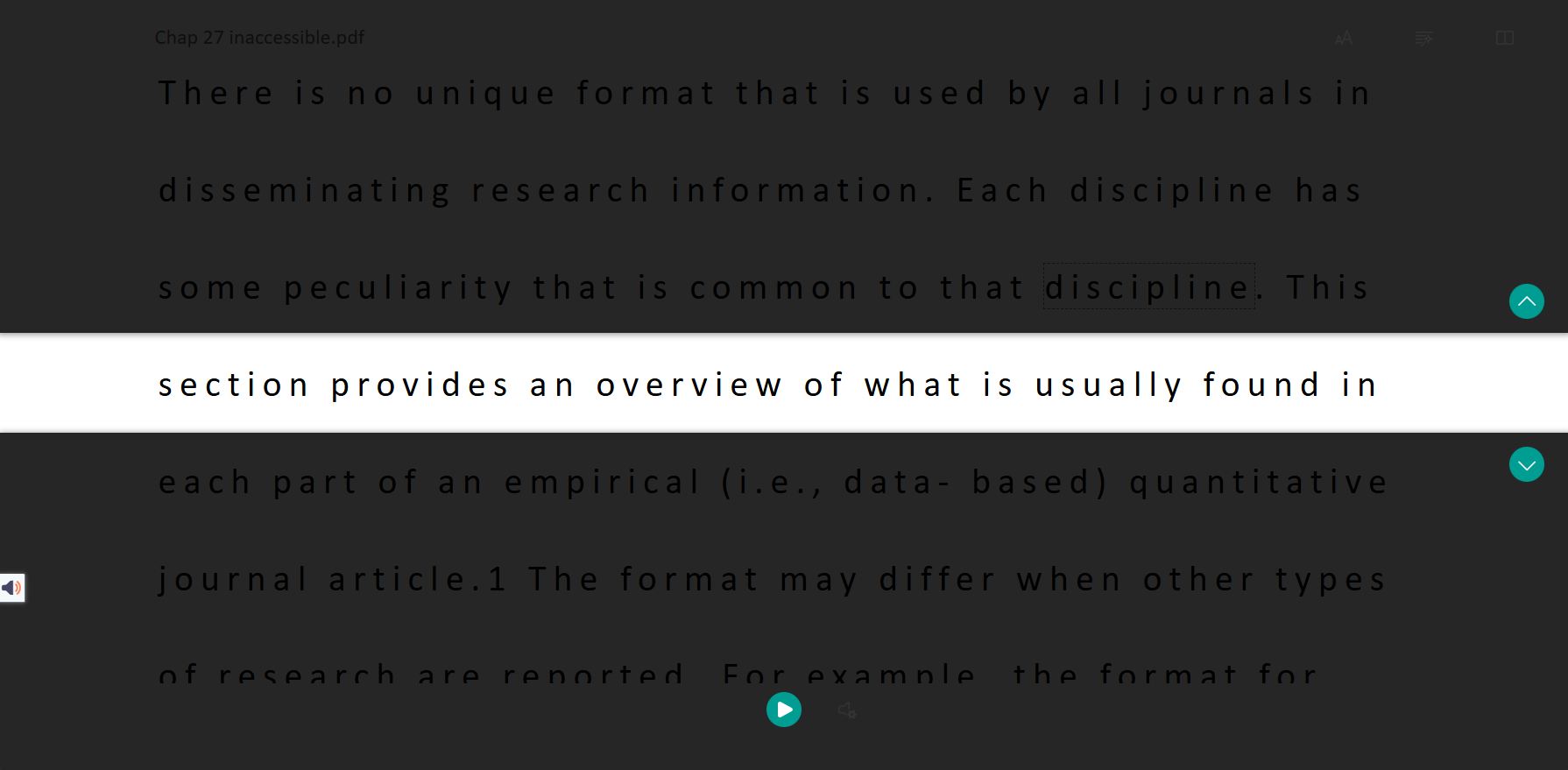
- In Reading Preferences, you can turn on “Line Focus” to mask part of the screen, which helps with focus. You can change how many lines show in this mode.
- Below is an image of what the line focus looks like with the screen masked except for a single line. Use the green arrows to move the focus line up and down the page.
Troubleshooting Tips
- If you do not see the Anthology Ally symbol next to a course file, your professor might have inadvertently changed the settings. First, try reaching out to the professor to see if they can turn the Alternative Formats feature back on.
- If you are still experiencing issues after reaching out to your professor, please reach out to the IT accessibility report team at csu_it_accessibility@colostate.edu.