


Where to Start with Canvas
With Canvas content, consider consistency of layout and formatting within a course shell, including using features such as headings, descriptive links and alternative text as in any other type of document.
Also consider accessibility when adding external content to a course. This includes uploaded documents such as PDFs, video or audio files. It also includes more complex items such as quizzes, electronic proctoring, interactive assignments and electronic textbooks.
The Universal Design Goals below are based on the Electronic Accessibility Rubric. Faculty are expected to work towards meeting Universal Design Goals for their content.
Full Accessibility items are necessary to make Canvas content fully accessible. These items may require additional support or alternative access if needed for an accommodation.
Universal Design Goals
Use Anthology Ally for Canvas
Anthology Ally is an accessibility checker within Canvas. This tool identifies content with common accessibility issues and offers guidance on how to fix them. Use Ally as a tool to help meet Universal Design Goals. Visit the Anthology Ally for Canvas page for more information on which errors to prioritize.
Ally also provides alternative formats for students, which is essential to meeting Universal Design Goals for PDFs. Do not disable the alternative format option in your courses.
Text Editor: Canvas Accessibility Checker
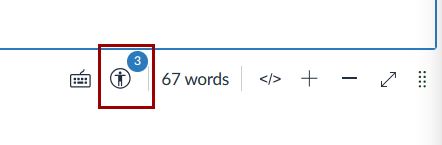
In the text editor, use Canvas’ built-in accessibility checker to check for issues within Canvas pages. The checker finds a few different issues than Ally, although some are the same such as images lacking descriptions.
- Click on the accessibility icon at the bottom of the text editor to see the issues:
TidyUp for Canvas
TidyUp is a tool available in Canvas that can help you find and remove files that are no longer in use in a course. This step can reduce the amount of work needed to make a course accessible. Visit the TidyUp for Canvas page for a full tutorial.
TextAid in the Course Menu
TextAid is an text-to-speech tool that is available for all students in Canvas. It is automatically enabled in the course navigation menu. Do not disable this tool, as it is essential for many students’ assistive technology accommodations.
Use Accessible Templates
The default course template in Canvas is designed with accessibility in mind. Benefits of using the template include:
- Students experience a consistent layout in all courses which helps them to find information more easily
- Headings are set – you just need to update the text while keeping the formatting
TILT’s Syllabus Template is also accessible, if you are creating a document version of your syllabus.
Use Headings for Structure
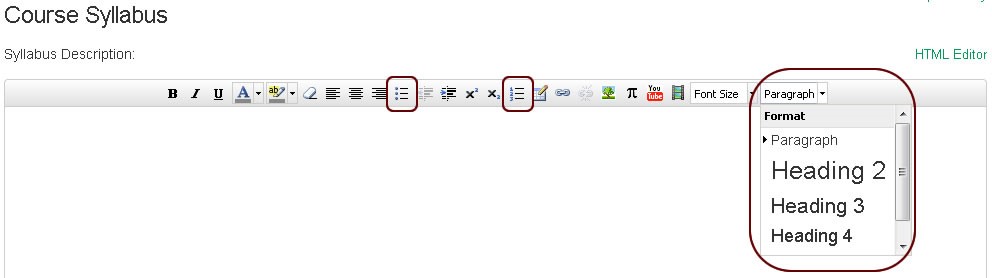
Use the Format drop-down menu to select heading levels within the text editor. In Canvas, Heading 2 is the highest level you can choose.
Also use the bullet and numbering options available from the formatting toolbar instead of manually typing lists.
Make Links Descriptive
Video Demonstration
Written Instructions – Method 1
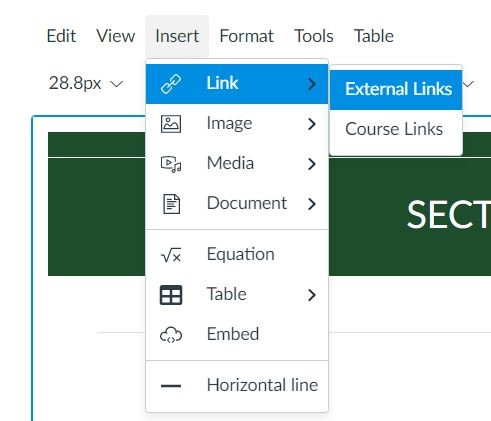
- In the text editor, click on the Links icon or use the Insert menu to add a link.
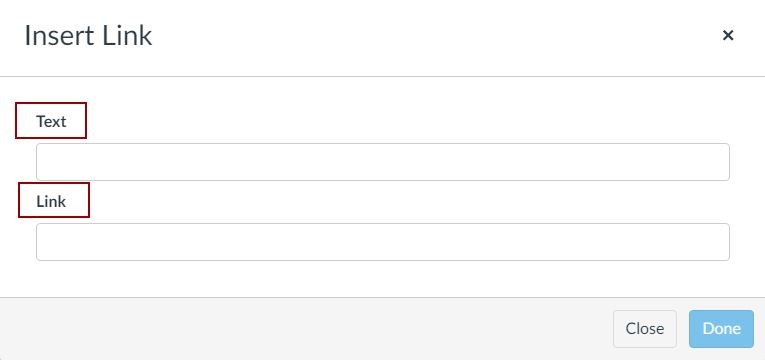
- Write the descriptive text in the “Text” box.
- Write the link address in the “Link” box.
Method 2
Another method of adding a descriptive link is to edit an existing link instead of inserting a new one.
- Click on the existing long url in the text editor and select Link Options.
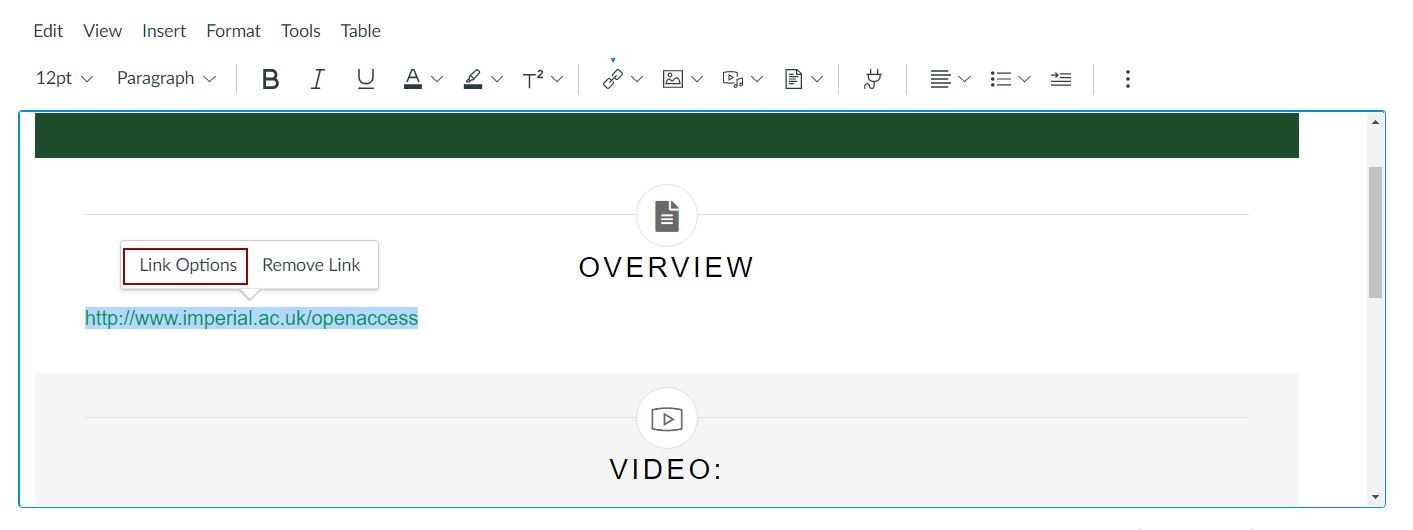
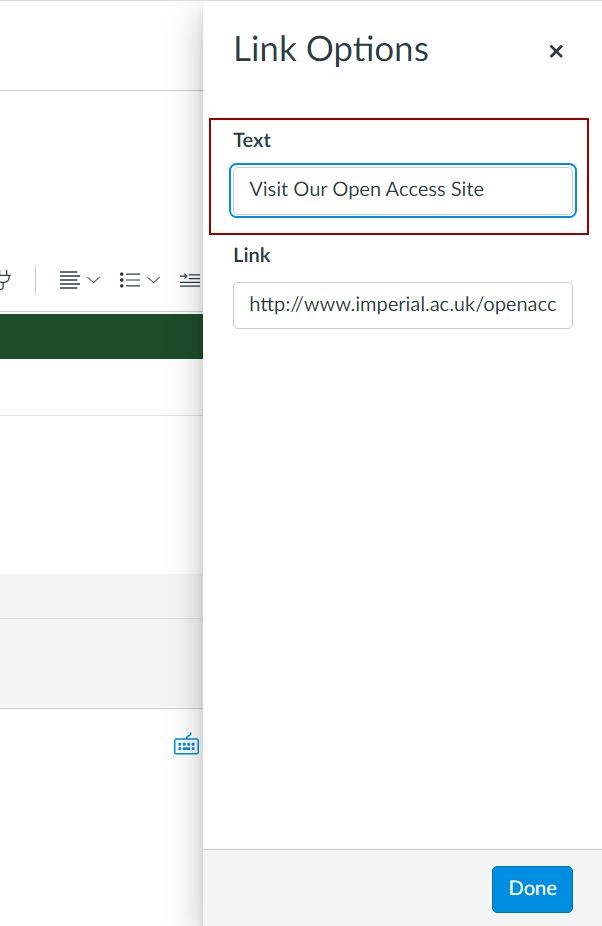
- In the Link Options window, ensure that the Text field contains descriptive text.
Ensure Sufficient Color Contrast
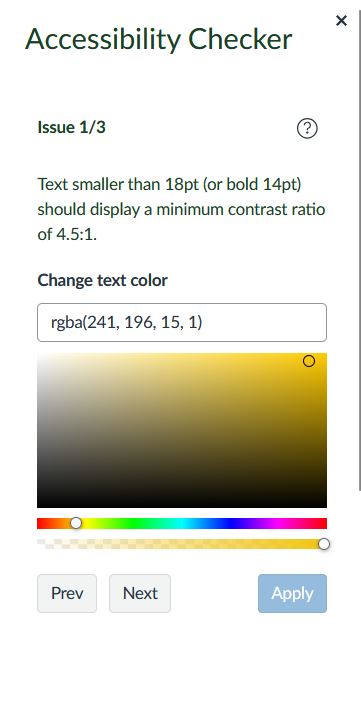
Use Canvas’ built-in accessibility checker in the text editor to check for color contrast issues within Canvas pages. Click on the accessibility icon at the bottom of the text editor:
If any text has insufficient contrast, the checker will allow you to change colors using the color picker. This allows you to see when you find a shade that has enough contrast.
Provide PowerPoint Files
Simply providing your PowerPoint files alongside recorded lectures makes a huge impact for many students.
- Many students use assistive technology for note-taking. Note-taking technology allows students to make notes directly on PowerPoint slides for later study.
- Students with visual impairments benefit greatly from access to PowerPoints during a lecture or presentation. This allows them to keep up with the content.
- Students in general benefit from being able to read the PowerPoint themselves in addition to hearing the content during a lecture or presentation.
Use Descriptive File Names
One very easy item that makes a big difference for students is how you name your files. Use descriptive file names to help students identify the correct files after downloading them.
Provide Basic Image Descriptions
Provide basic image descriptions for images in Canvas. The video below shows how to do this during upload. You can also use the Ally Tool to add image descriptions.
Video Demonstration
Written Instructions
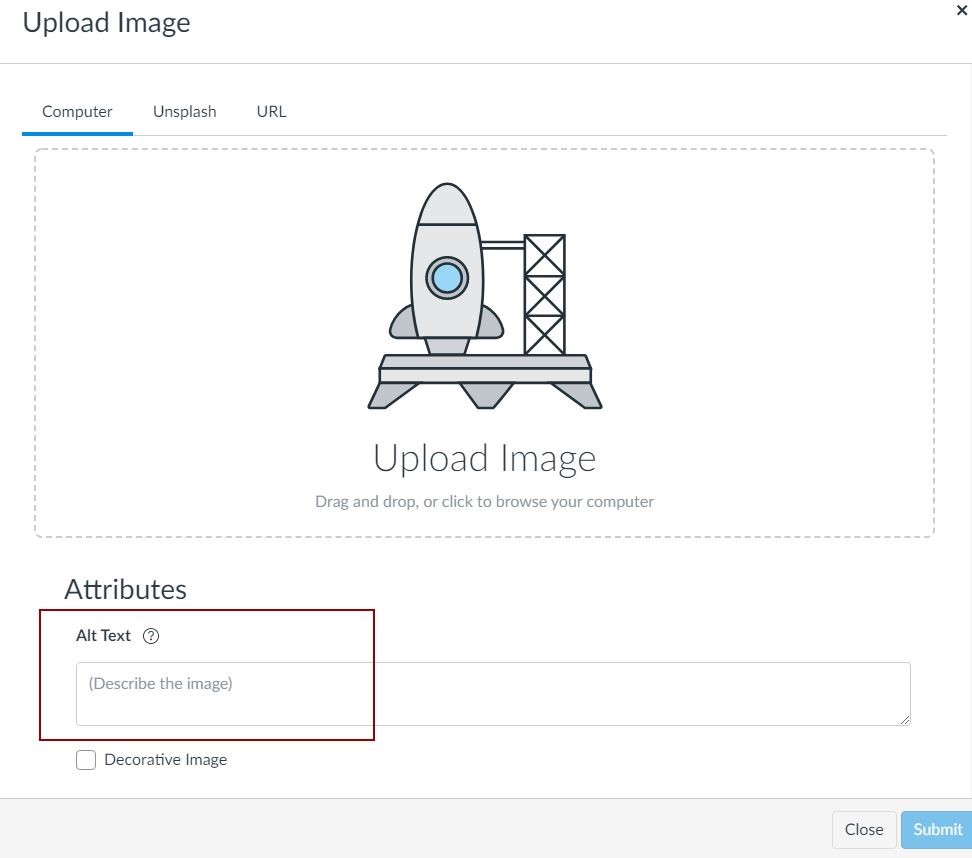
You can enter alternative text at the same time that you upload an image.
At the bottom of the Upload Image window, type the image description in the Alt Text box before submitting the image.
Request Accessibility when Selecting e-Textbooks
Electronic textbooks create additional barriers for students. They often need to request alternative formats that are accessible with their assistive technology, and are unable to access interactive assignments in the same way as other students.
Advocate with publishers for their e-textbooks and interactive courseware to be designed accessibly for all types of assistive technologies, not just screen readers.
Full Accessibility
Use Accessible Question Formats
Question Types
The quiz question types available in Canvas are mostly accessible to assistive technology. Some exceptions include:
- Drag and drop: This feature is completely inaccessible and should be avoided
- Drop-down choices are not recommended unless the list of options is very long
If a student reports that they are unable to take a quiz using their assistive technology, contact the Student Disability Center for guidance.
Math Formatting
Canvas natively uses MathML to format equations. This provides math in the most accessible format currently available. Screen readers and text-to-speech software are both capable of reading MathML.
- LaTeX is not accessible without converting to MathML or MathJax
- Images of math equations are not accessible without alt text
Extended Time
Extended time is a frequent accommodation for students with disabilities. Below are resources on how to add extra time to quizzes in Canvas.
Avoid Digital Proctoring Tools
- Proctoring solutions create potential access barriers for students with disabilities who use assistive technology. Students who have testing accommodations may need to use a different proctoring solution if their accommodation is not compatible. Be flexible with your testing requirements, and provide students with the ability to communicate any barriers they experience with assistive technology.
- Substitute the Honor Pledge for proctoring software if accommodations cannot be made with the software.
- For questions about testing accommodations with proctoring software, contact the Student Disability Center.