


Where to Start with Word
The Universal Design Goals below are based on the Electronic Accessibility Rubric. Employees are expected to work towards meeting Universal Design Goals for their content.
Full Accessibility items are necessary to make content fully accessible. These items may require additional support or alternative access if needed for an accommodation.
The same concepts outlined here apply to other word processing formats, although other products are less accessible. Microsoft Office products are supported through our institutional licensing and provide the required level of accessibility. You may be required to use Microsoft Office for student accommodations.
Universal Design Goals
Use Headings and Styles for Structure
Video Tutorial
Written Tutorial
Select the appropriate heading level using the Styles toolbar on the Home Ribbon.

Use the Navigation Pane
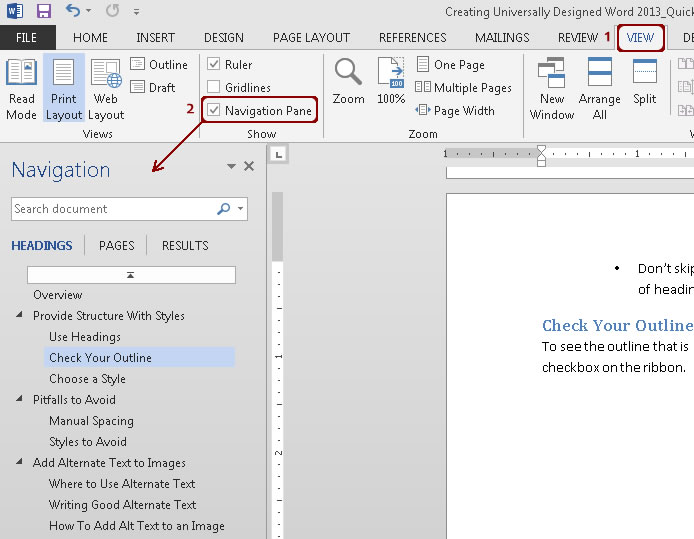
Check the document structure using the Navigation Pane. Click on the View Ribbon, then check the Navigation Pane checkbox.
- The document outline appears on the left side of the document in the Navigation Pane.
- Click on any of the headings in the Navigation Pane to go to that section.
- You can also drag headings in the navigation pane to quickly re-order content.
Customize Styles
You can quickly change the visual appearance of headings across an entire document to match your formatting preferences.
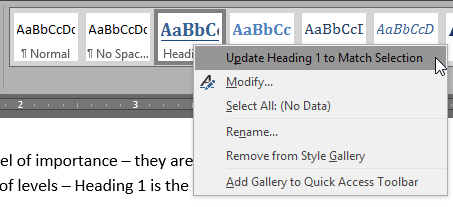
- Set the font, color, spacing, etc., to what you would like Heading 1 to be.
- Highlight the correctly formatted text.
- Right-click on Heading 1 in the Ribbon, and click Update Heading 1 to Match Selection.
Now each Heading 1 will use your preferred formatting. You should see that all Heading 1 text has changed throughout your document. (You can also click Modify for more formatting options.)
Make Links Descriptive
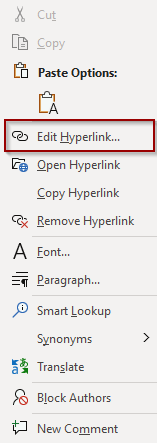
To add descriptive link text in Microsoft Office, first select the link. Right-click on the link and select Edit Hyperlink.
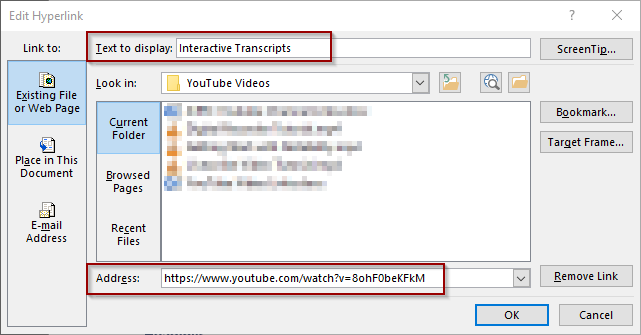
- Type the descriptive text in the Text to Display field.
- Leave the url in the Address field. This is the link that will be followed.
Ensure Sufficient Color Contrast
Choose a theme that has good color contrast, including on headings and links.
Visit Color Contrast Tools page for instructions on checking color contrast.
Provide Basic Image Descriptions
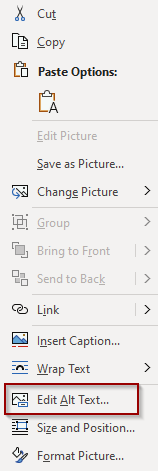
Right-click on the image, then select Edit Alt Text from the context menu.
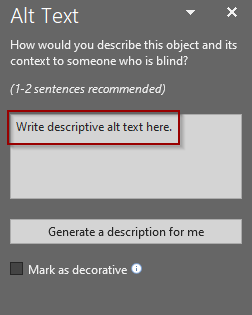
A sidebar will open on the right side of the document. Add your descriptive alternative text in the text box.
Designate a Table Header Row
Table Properties
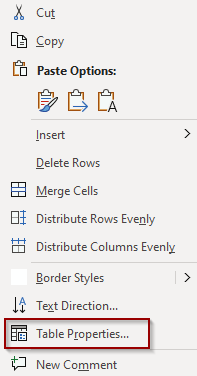
To define the header row on a table in Word in a way that benefits visual users as well as screen reader users, right-click on the top row of the table and select Table Properties.
In Table Properties on the Row tab, check the box to Repeat as header row at the top of each page.
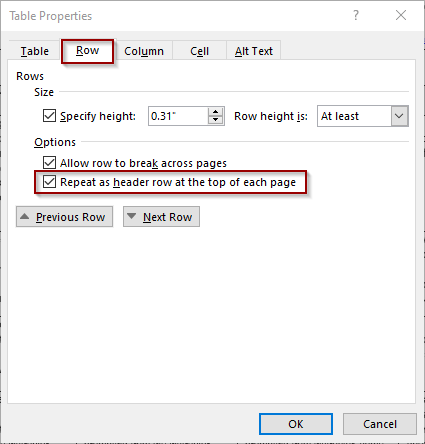
Table Design Tools
Also make sure that the header row and/or column is set in the Table Design Tools. Setting the table headers here does not allow the header row to repeat on multiple pages but it remains important, especially when saving to another format such as PDF.
Select the Design tab in the ribbon under Table Tools.
Check the checkbox titled Header Row at the top left of the Design ribbon. If the table also has a header column, check the box titled First Column.

Full Accessibility
Simplify Tables
Complex tables are those that often have more than one header row, merged cells, or additional titles in the middle of the table. These should be simplified so that they make sense with only one header row.
Visit Tables page for more about simplifying tables.
Provide Table Data for Charts and Graphs
Charts and graphs are usually generated using data from tables. Include the data tables alongside charts and graphs. This provides an alternative method of gaining the same information and is helpful for everyone including screen reader users.
Provide Long Description for Complex Images
For complex images, tables or charts, simple alternative text isn’t enough to provide a complete understanding to your audience. Include a long description in the surrounding text or in an appendix.
Visit Long Description page for more details.
Microsoft Accessibility Checker
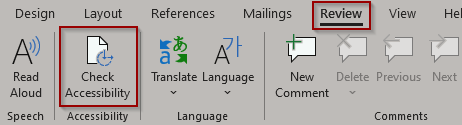
To open the built-in Accessibility Checker, go to the Review Ribbon and select Check Accessibility.
This opens a sidebar on the right side of the document with a list of issues discovered. Clicking on a listed item takes you directly to the location that needs to be fixed.
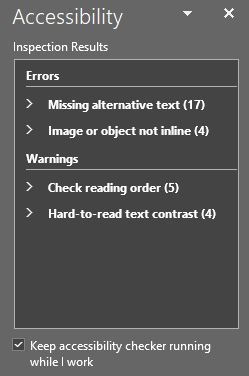
You can also monitor accessibility as you continue authoring the document. At the bottom of the page next to the page count is an ongoing accessibility status update.

Note that there are some errors in the checker that we don’t cover on this website. You can learn even more about accessibility by resolving all the issues discovered using the Accessibility Checker. That’s why we consider this an advanced step.